Numbers don’t add up in Excel

With the popularity of Excel, it is no wonder many third party applications offer a feature to allow you to export data directly into Excel. This is convenient and makes it easy to share information as almost everyone has Excel loaded on their computer. Unfortunately, often these files (due to poor coding from the third party application) do not have full functionality.

The Problem: Numeric Columns Don’t Add Up

Your boss receives a file from your purchasing department. It is a monthly breakdown parts expenditures for your maintenance department. The problem is, when he tries performing some basic arithmetic functions on the spreadsheet, the numbers don’t add up(literally). **Note the SUM() function in the picture below returns $0.00 even though there are positive values in the column above.

numbers


After attempting all the solutions he could think of, your boss sends the file to you hoping you can help him out.

The Solution: Hidden Characters

 After receiving the file, you discover the cause of the problem is hidden characters. Whatever application this spreadsheet was exported with, added a few hidden gems to make sure the file is utterly useless to anyone trying do much more than just read the file. 

So how do we fix the issue? First you will need a keyboard with a numeric keypad. Time to start digging through your desk drawers or making nice with the office hoarder. I am sure he has a few dozen keyboards squirreled away somewhere and can loan you one. Although it will probably be up to you to dust off the doughnut powder.

Okay, so you have your keyboard. Now what?

  1. Highlight cells you want to work with
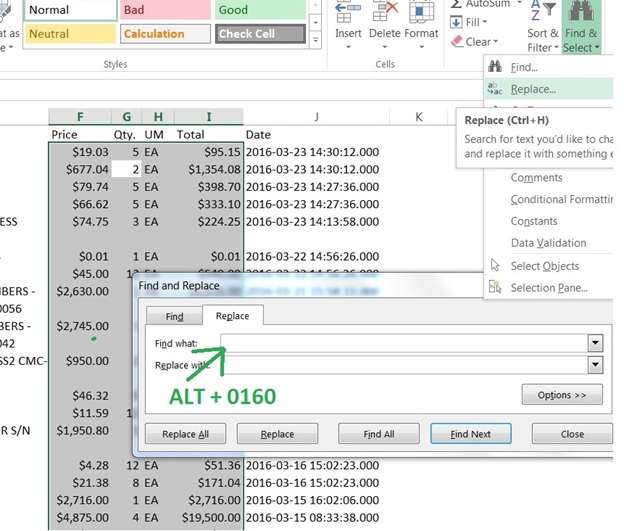
  2. Go to Find&Select > Replace in the upper right corner of your ribbon bar
hidden1

3. In the Find what: field – hold down the ALT key and type 0160 with the numeric keypad. ***note nothing will appear in the space as you type this

4. Leave Replace with: blank and hit the Replace All radio button

Now all of your numeric columns will function properly.You can send the file back to your boss, further cementing your reputation as the office Excel guru.


Extract Date from DateTime in Excel

Have you ever exported an Excel file from a program and the formatting was all off? Even worse, when you try to fix the formatting, Excel won’t let you. One of the most common problems I run up against is date time formatting issues when I am dealing with Excel file that originated somewhere else.

The Problem: Date Time Format cannot be Changed

datechange

Here we have an Excel file in which one of the columns contains a date time stamp. The problem is, we do not care about the time, we only want the date. No matter what we do though, we can not seem to alter the date format.

None of the standard fixes help here. Formatting the cells, copying cells to a new sheet, and even using Special Paste results in a date time stamp we still cannot alter.

The Solution: Text to Columns

First things first – Make sure to select the date column in question.

datechange1

From the Ribbon Bar, go to the Data tab. You will see an Icon labeled Text to Columns.

datechange2

We are going to use Fixed width as the elements in the date time column all maintain a fixed size.

Hit next. Excel will place bars in the data preview window to show you how the data will be segmented. **Notice Date, Time, and AM/PM each occupy a separate column now.

datechange3

Since everything looks good, we will hit next.

Now highlight the date column, select Date from the Column data format box and chose your preferred date format from the drop down menu.

datechange4

For the next two columns, since we do not not need them in this example, we will just highlight each column and select Do not import column (skip)

datechange5

Now hit Finish and here are the results.

datechange7


Merging Data with Excel

Before you can do anything with your data, it has to be cleaned and prepped. While certain fixes (spelling errors, date format, number format, etc.) are easy enough to handle, merging multiple tables or worksheets together can be frustrating. I have witnessed seasoned Excel users reduced to manually inputting hundreds of data fields into their spreadsheet. If only they knew how to use the look up functions built into Excel.

Vlookup

Vlookup (and its transposed partner Hlookup) are 2 of the most common look up functions in Excel. And while they may seem complex at first, they are actually pretty easy to use.

Enough talk though, let us see how it works:

vlook1

Here are two tables from an imaginary auto repair shop. The Green Table shows a list of work orders, while the Yellow Table shows a pricing list for the services the shop offers.  So, the task at hand is to use the Yellow Table to populate a price column on the Green Table.

Start simply enough, go to the last column of the Green Table Right Click > Insert Column. Name the column Price and go to the first open cell in the column and input the following formula: =VLOOKUP(D2,$G$2:$H$&,2,FALSE)

vlook2

Now I know this looks complicated, but I promise it is not as bad as it looks.

  1. Start with =VLOOKUP()   **Whenever = is the first character in a cell, Excel automatically knows what follows is a formula.
  2. The first element inside the parenthesis of a VLOOKUP is the reference cell in your main table. In the example above, I chose cell D2 (seen in blue), which holds the service information for the first work order. This is the data field I want to reference against my lookup table.
  3. The next element is the range of the lookup table (seen in red). The lookup table range in this example is G2:H7. **After highlighting the lookup table, select F4 to lock the range in $G$2:$H$7. This ensures that as the VLOOKUP formula is replicated down the sheet,  the lookup table stays locked in place.
  4. The next element in the formula is the column that holds the return value. We are looking for the price from the Yellow Table, so column 2 holds the return value.
  5. The final element is Exact or Closest Match. FALSE means only exact matches. TRUE means closest matches.

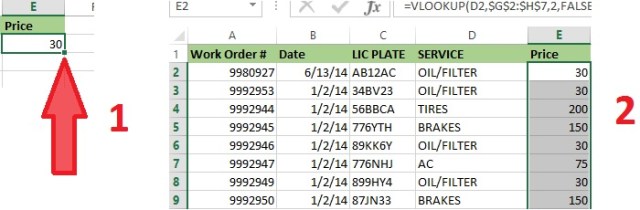
Once the formula is complete, hit enter and the price will appear in the cell. Finally, replicate the formula down through all Work Order records in the Green Table.

vlook5

Excel tip: If you hover your mouse over the little green square the arrow is pointing to, your cursor will become a black plus sign. Double click on the green square and the formula will be replicated down all the remaining rows in your table.
vlook3