Logistic Regression with Gretl

One of the most popular machine learning algorithms, Logistic Regression is actually a classification algorithm. Broken down to its simplest terms, binary logistic regression (the one we will be focusing on here) is answering a yes or no question. Will the customer buy or not? Is the email SPAM or not?

Score Accepted
982          0
1304         1
1256         1
1562         1
703          0

Above is a small sample from the data set we will be using for this lesson. In this set, student scores for an entrance test are listed in the first column and whether they were Accepted (1) or Not(0) is in the second column.

Download sample Excel file here: logi

I ran a scatter plot on the data with Scores on the X axis. As you can see the dots for 2 horizontal lines at 1 and 0. You may notice that the 1 (Accepted) dots seem to cluster towards higher scores and 0 (Not Accepted) dots cluster towards lower scores.

logi

Well since the point of Logistic Regression is help us make predictions, here is how the predictions work. The Logistic Regression, represented by my crudely drawn red S, goes from 1 to 0. And just like with Linear Regression, if we take a value for X, to make our prediction, we look for the value of Y on the line at that point.

logi1

In the case of a 1200 score, if we check the value of Y on the line, we get .80. This roughly translates to mean, that with a score of 1200, a student has an 80% chance of being accepted.

Let’s meet Gretl

While there are third party add-ons you can download for Excel that will do Logistical Regression, in its native form, Excel does not do a good job in this area. So I thought this would be a great opportunity to introduce you to a neat piece of FREE software called Gretl.

Here is the website to download GretlGretl Download

So why Gretl? Why not R or Python? I mean those are the languages real data scientists use right?

That is true, and R and Python can easily do a Logical Regression. The problem is  however, in order to use R and Python, you need to know how to program. Gretl, on the other hand, is GUI based. Think of it as a point and click light weight R. It is no where near as robust as R, but for learning how to do Logistical Regression, Gretl does a fine job.

Loading in the Data

After you install and start Gretl, the next step is to load in the data. Go to File>Open Data>User File. Search for the Excel file you downloaded previously in this lesson. Make sure you then select Excel from the file type at the bottom of the screen.

logi2

Select logi.xlsx. Leave the Start Import at window at 1 and 1. This is where the data starts in our Excel file: 1rst column, 1rst row. You will get a message letting you know how much data was imported.

The next pop up will noted that the data is undated. Click No on this window.

logi3

You data columns (Score, Passed) will appear in the  Gretl window. If you click on one, the data from that column will appear in a pop-up window. **note in the file you download, column 2 will be Accepted not Passed.

Let’s Model

Without further ado, let us do some modelings. From the menu bar Model>Limited dependent variable>Logit>Binary…

logi4

Now you have to select you Dependent variable and Regressors. Here is a hint, the dependent variable is what we want to find. What are we looking for? Will the person be Accepted. So Accepted goes in Depentdent variable and Score goes in Regressors. Pick the Show p-values radio button and then click Okay.

logi5

Below are the results of your Logistic Regression model

I am not going to give a Stats lesson here, but I will cover the important points.

logi6

  1. The top red box contains some important information. First the coefficients represent the b and m values from the linear equation we will be using later: y=mX+b =y=0.0105216X + -11.2757
  2. The p-value of Score = 0.0009 This is important as the p-value is a probabilistic value  that determines whether or not the regressor variable truly affects the dependent variable. The most common p-value threshold you are likely to come across is 0.05. If your regressor variable has a p-value above 0.05, you will want to reconsider your model.
  3. The matrix at the bottom of the screen. This shows you how successfully your model predicted outcomes from the training data set. It translates of the 0’s (not accepted) the model got 19 out of 21 right. For 1’s(accepted) the model got 19 out of 21 right. That is a 90% success rate. Not bad.

Let’s Use the Model

Okay, so maybe you jumped ahead and tried 1200 in the linear formula we developed above. It is 1.325?? How is that? Isn’t this supposed to be between 0 and 1.

Well the problem is, we are not looking for Y we are looking for probability (p). Y in this case is not the Y intercept, but instead:

logis1


Well, we know Y = 1.325 for a score of 1200, how do we find p from that? We solve  for p. Now feel free to go and do the math yourself if you want, but I already did the work for you. The equation below solves for p. If you don’t trust me and want to do it yourself, be my guest, but I assure you the equation below is good.

logis2

Let’s Make a Prediction

Let us put the formula’s we have found into Excel

logi8

Now you have a working prediction model. Any value you place in the score cell will be calculated to Y and p (probability). As the example above shows, a score of 1200 give us a probability of .79.

Turns out my crummy drawing wasn’t so bad after all.

logi1


SQL: Getting Full Days Worth of Data

From a real work example:

I get a weekly data file of patient alarm data. This data is collected continuously throughout the day. However, the data must be exported manually and is usually done in the middle of the day. So the first and last data samples in my set could be taken at 14:41 one week apart. Since I only want to have full days worth of day, I like to truncate the data at midnight – deleting any partial days from the data set.

Instead of having to manually look at the data and determining when to cut off my data, I wrote the following simple script.

SQLDate

This script takes advantage of SQL’s variable functionality. Notice you need to declare your variables ahead of time. One thing to keep in mind is that variables only exist within their scripting block. Meaning once you are done executing this block of code, the variables are dropped from memory and no longer available to further code blocks.

I set the variables value using an inline Select statement. The nested function in the Select statement reads like this:

 convert(date, (dateadd(dd,1,min(dateField))))

It is actually a combination of the following functions – by order of operation:

Dateadd()

dateadd(dd,1,min(dateField)) = add 1 day(dd) to the minimum date (min(dateField)) in the table ** the dateadd function always starts at 12:00 AM when adding or subtracting a day

Convert()

Convert the value from Dateadd() above to the Date format.

Finally:

Delete from Table1
where dateField not between @start and @end
go

This final block of coat deletes every record in NOT in between the dates represented by the @Start and @End variables

SQL Code

declare @start date
declare @end date

set @start = (select convert(date,(dateadd(dd,1,min(dateField)))) from Table1)
set @end = (select convert(date,(dateadd(dd,0,max(dateField)))) from Table1)

delete from Table1
where date not between @start and @end
go


Tableau: Free and Reduced School Lunch Program

This visualization depicts Free, Reduced, and Full priced lunches served by the the National School Lunch Program (NSLP) in United States Public and Private Non-Profit Schools.

school

The sharp rise Free lunches, in conjunction with the sharp decline in Full priced lunches since 2008 hints that the effects of the 2008 economic recession are still being felt.

school1

Visualization can be found at: Link to Tableau Worksheet

**Data taken from Data.gov: Link to Data File

Automating Data Preparation with SQL Server

Download the Excel file here: Data Cleaning with SQL
Download the SQL file here: Data Cleaning with SQL
**Zip Folder contains the SQL file as both an SQL file and Txt for easy
viewing by people who don't have SQL Server installed 

Data preparation and cleaning is not a lot of fun. Data preparation is especially irritating when you have to repeat the task over and over again. While no one has come up with a data cleaning magic wand that I am aware of, there are some ways to automate the dreaded process.

While there are many software offerings out there that can help you with data cleaning, some are very expensive and have a high learning curve. So in this article I am going to focus on SQL Server. I chose SQL Server for the following reasons:

  • SQL programming is vital skill to have if you want to work in data
  • SQL Server readily available. Many  companies have it. If you don’t have access to a current SQL Server, you can download the Express version for free.

The Problem

You work for a university and scheduling software is sorely out of date. The reporting capabilities are limited to 4 pre-canned reports. There is no money for an upgrade, but your boss is asking you for some reports that are not available from the system.

So you go to extract some data from the outdated software, but the program only lets you extract the following 4 columns (Start Date, Class, Professor, Classroom).

Let’s look at the data

Here is the data sample you pulled.

sqlcleaning

To effectively create the reports your boss is asking for, you need to add a few more data points.

sqlclean1

Now, while these columns can be added manually, keep in mind a class schedule at a even a small university is at least 100 classes. And when you consider that you will have to repeat this process for every new semester, finding a way to automate this process will save you a lot of time in the end.

Step One – Get the data into SQL Server

First, let’s create a new database to work with.

Open up SQL Server Management Studio >  Object Explorer > right click  > Databases > New Database

sqlclean2

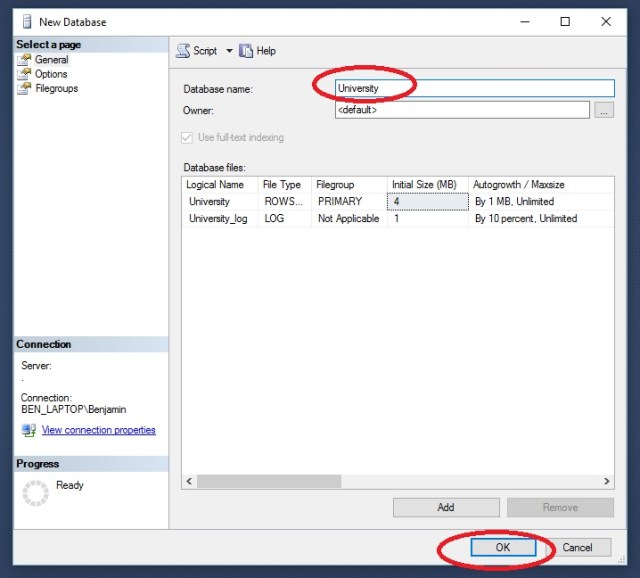
In the New Database window, give your new database the name University and click OK

sqlclean3

Right click on your new database > Tasks > Import Data

sqlclean4

On the Welcome to SQL Server Data Import  and Export Wizard click Next

On Choose a Data Source, select Microsoft Excel from the drop down. Then browse to your downloaded Excel file: dataCleanWSQL.xlsx

sqlclean5.jpg

Select SQL Server Native Client from the drop down. If your are working on the same machine as your SQL Server instance, you can just put a period “.” in Server Name. Otherwise you would need the server name. Database should be pre-filled with University.

sqlclean6

Select Copy data from one or more tables or views and click Next

sqlclean7

Take note of Destination name ([dbo].[Sheet1$]) and click Next

sqlclean8

Click Next and Finish. You will watch the process. Note how many rows transferred. This should match up to your source data.

sqlclean9

Back in the Object Browser go to University> Tables > dbo.Sheet1$. Right click and Select Top 1000 Rows.

sqlclean10

Here is the output, showing the contents of your imported data

sqlclean11

Step 2- Write the SQL Script

Load the SQL script by going to File>Open>File and choose DataCleanwSQL.SQL

While this is not an SQL tutorial, I will give a brief overview of the script file

**note GO in SQL indicates a complete block of code. This code will be completed before the script continues one to the next block of code. While it is not always needed, it is good coding practice

The first block of code: use University, simply tells SQL Server which database we are working with.

The next block: alter table, lets you make changes to an existing time. In this case, we are adding 3 column for out new data fields to go in (day, department, building).

sqlclean12

The next block is an update block. In this block we set the value of our new column day by datename(dw, [start date]). This converts the datetime stamp from [start date] to a weekday name.

The next block is a Case Statement. This works like a nested If – Then -Else statement in many languages. In this block we are stating When the value of Class column is like ‘Calc%’ ( % is a wildcard in SQL) Then set the value of the department column to ‘Math’

sqlclean13

The next code block is another Case statement. This one is using a between statement though, stating that When the Classroom column value is between 100 and 199 then set the value of Building to A

Finally
Select *
from dbo.sheet1$
displays the contents of the table.

sqlclean14

Now we have our data the way we want it. You connect you BI tool to SQL Server to work with the data, you can export it as a CSV file, or you can just copy an paste it into Excel for further analysis.

sqlclean154

Step 3: Repeat as needed

The great advantage the method above is that now we have a script we can run again over and over. So the next semester, when you download the new class listing, you don’t have to spend a lot of time on data prep. You simply have to import it into SQL Server and run your script.


Transpose Data with Excel


Transposing a table or matrix is a method of rotating or pivoting a table so the rows become the columns and the columns become the rows. Excel offers a couple of methods of performing this action without having to manually recreate the table.

transpose1

Click here to download the Exercise File: Transpose

Method 1: Paste Special

This method is very simple.

  1. Highlight the table, Right Click > Copy
  2. Select a cell where you want the Transposed Table
  3. Right Click > Paste Special > Select the Transpose Clipboard

transpose2

Closer look at the Transpose Clipboard Icon

Transpose3

Method 2: Transpose()

While the Paste Special method works well, it does require user interaction. If you want to automate the process, you can use the Transpose() function.

Transpose4

  1. Highlight some blank cells. Make sure you highlight enough to fit you data. In this case, we need to highlight 4 down and 5 across.
  2. Now click inside function bar (ƒx)  Type the following: =transpose(
  3. Highlight the table you wish to transpose: =transpose(A1:D5
  4. Close the function: transpose(A1:D5)
  5. Now hold down Shift+Ctrl and press Enter

Argument for Method 2

While the Paste Special method is easy to use, here is a major draw back to it. Notice the red circled cells. After creating Transposed tables using the Transpose() method and the Paste Special method, I changed the Sensor 1 Qrt 3 value from 23 to 24. Notice the Transpose() table updates with the new information, while the Paste Special table does not.

Transpose7


Data Modeling

Being a data professional requires a variety of skills. While you don’t have too look far to find heated debates on what skills are most valuable: R vs Python, SQL vs Pig Script. But to me, before you can make use of any of these skills, you need to have a grasp on data modeling.

What is Data Modeling?

Simply put…Data modeling is finding a way to represent objects or concepts through the use of data elements. Up until recently, these elements were limited to a few data types: text, numeric, boolean, date and time. Newer elements, such as spatial, temporal, video and image files have found their way into data bases, but the job of the data modeler remains the same.

Now there are hundreds of books out there on data modeling, and having read a few, I can attest that the field of data modeling is vast. Luckily for us, we only have to dip our toes in.

Why is Data Modeling Important?

Don’t let training data sets fool you. In the real world, the majority of your time will be spent extracting data from multiple sources, merging it into 1 or more sets, and cleaning and transforming the data for analysis. If you do not understand the underlying principles of how data is stored, you are going to have a hard time even finding it, much less doing anything with it.

While learning about data modeling through more formal methods, you will be exposed to terms like: Entity, Relationship, E-R Diagram, Attributes, Tuples, etc. I am going to try to keep the language here simpler. I will use terms I believe everyone already understands. Terms like: Table, Row, Column. I will leave some side notes here and there for those who want to geek out, but I really would like you to keep your focus on more on the concepts and less on the picky details.

Enough talk, let’s start modeling.

Our First Data Model

So, let us imagine you are working for a college, one that apparently just discovered computers, because they have asked you to come up with a way to track professors, the classes they teach, and what room the class is in.

That sounds simple enough. You go to you office and knock out the model below.

DataModel

Does it work? Technically yes. It does meet the requirements, but it has some flaws that could be fixed with a better model.

  1. Notice the box bordered in red. There is not B Larsen – that is a typo. It is supposed to say B Larson, but any model that relies on a human to correctly input information over and over again in the exact same fashion, is bound to run into issues like the this. This issue falls under the name Data Integrity.
  2. Notice the duplicated information in the Professor and Classroom columns. Having to right the same name over and over again in your model is inefficient and it leads to data integrity errors as highlighted above.

Solution: Normalization

If you pick up any book on database design or data modeling, you will undoubtly come across the phrase normalization. What normalization refers to is a systematic method of converting a data model like the one above into a data model suitable for use in a relational database. **a relational database is the official term for most databases you use on a daily basis. Relational refers to how entities(Tables) and attributes(Columns) in the database interact. It will be explained better later in the article.

Now most databases you will come across (data marts and warehouses excluded) are normalized to what is known as the Third Normal Form (3NF). Now if you want to learn the specifics what it means to be 3NF vs 2NF or 1Nf, I have added a link to a good site on normalization in databases.:

Normalization

For everyone else, rest assured you really don’t need to know that much detail. You just need to understand a few concepts.

Below we have the data model from above, only now it has been normalized for use in a database.

datamodel1

So what have we done? The first thing you will notice is that we now have 3 tables instead of only 1.Why did we do that? Well first I want you to notice the Professors and Classrooms tables. Notice how each name and classroom is only listed once in these tables? This is done to prevent repeated entry of the same information into the database. Not only does this save the data entry clerk time, but it also reduces the chance for spelling errors like seen in the first data model.

Next, notice the first column in Professors and Classrooms. They ID fields are what is known as primary keys. These numbers be unique as they are used to identify  unique data. For and example, let us say S Rider stood for Shawn Rider. Now halfway through the year Sarah Rider was hired. We could have assigned her a new name, or we could simply create another S Rider and assign it a Prof ID of 7. This way Shawn (2) and Sarah (7) can easily be told apart.

Finally, notice how in the Classes table, instead of the professor’s name and classroom number, the ID codes are used. This is the relationship part of the relational database I had mentioned earlier.

datamodel2

You can see in the image above how the 3 tables relate to each other. This is why I stated above that data modeling is so important for you to learn. At some point in your career you maybe given access to a database to pull your own data. When you open up a table like Classes, I want you to understand that the numbers in ProfID and ClassID are reference points to separate tables which store the information you are looking for.

SQL, as well as most BI tools, provide methods for joining the three tables back together to provide you with the data you need to do your analysis. But without a basic understanding of data modeling and how items such as primary keys function, extracting any meaningful data from the database.