Python Web Scraping: Using Selenium to automate web

This is follow up to how to connect to Chrome using Selenium. If you do not know how to get to a website on Chrome using Selenium, go here

To refresh. here is the code we used to open up a web page (in this case Wikipedia’s home page)

If you run this code, you should find yourself on the home page for Wikipedia

Okay, so now lets learn how to interact with page, the first thing I am going to do is to select the English language version of the page. There are a few ways go about this, but one of the easier approaches is to look at the HTML code that creates the page and to use xpaths or titles to find the object you are looking at.

Right click on the link for English and click inspect from the drop down.

If you get a body link first, you might need to right click and hit inspect again

To check if you have the right element, hover your mouse over it, and it will be highlighted on the webpage

Once you have the right element, right click on it, go to copy>Copy Xpath

Chose Xpath, not full Xpath, it makes for easier coding. You XPath should look something like this: //*[@id=”js-link-box-en”]/strong * When you go to try this, your XPath may look different. As websites are constantly updated, many of the Xpaths get updated as well. Go with the one you find when you Inspect the HTML code yourself

Now we are going to use selenium to “Find” the element we want. The code is dr.find_element_by_XPath(‘//*[@id=”js-link-box-en”]/strong’) *Note the use of single quote around the XPath, it is better to use them as many XPaths will contain double quotes

Once you have run that code, Selenium knows what element you are looking at, you can interact with it now. Let’s “click” the link

Note something i did in the code, I added a link= before my find element command. This assigned the element now to a variable. I can now use the “click()” method the variable inherited from the selenium.webdriver object to click on the English link

I could have just done this: dr.find_element_by_xpath(‘//*[@id=”js-link-box-en”]/strong’).click()

But by assigning the variable it is a) cleaner code and b) the link can be reused by my code later. Remember, it is a law of programming that you will always have to go back and fix something you haven’t seen in 6 months, so make the code as clean as possible to make future you less likely to develop a drinking problem due to having to fix poorly written code.

If you run the code above, you will move to the home English page

Lets try one more thing, lets typing a search into the search bar:

Right click > inspect the search bar, then right click>copy>copy xpath the selection in the HTML code

Now that you have the XPath, lets use the find_element_by_xpath code and a new command, send_keys() to input characters into the search box

Finally, right click on the magnifying glass>inspect>copy>copy Xpath and let us click on it to finish our search. (remember to hover over to make sure you have the right link)

Now you should find yourself on the Data Science page of Wikipedia

Now remember — the xpaths I have on this page will likely be out of date by the time you try this, so make sure to inspect the elements and get the correct XPaths for this work for you.

Automating Data Preparation with SQL Server

Download the Excel file here: Data Cleaning with SQL
Download the SQL file here: Data Cleaning with SQL
**Zip Folder contains the SQL file as both an SQL file and Txt for easy
viewing by people who don't have SQL Server installed 

Data preparation and cleaning is not a lot of fun. Data preparation is especially irritating when you have to repeat the task over and over again. While no one has come up with a data cleaning magic wand that I am aware of, there are some ways to automate the dreaded process.

While there are many software offerings out there that can help you with data cleaning, some are very expensive and have a high learning curve. So in this article I am going to focus on SQL Server. I chose SQL Server for the following reasons:

  • SQL programming is vital skill to have if you want to work in data
  • SQL Server readily available. Many  companies have it. If you don’t have access to a current SQL Server, you can download the Express version for free.

The Problem

You work for a university and scheduling software is sorely out of date. The reporting capabilities are limited to 4 pre-canned reports. There is no money for an upgrade, but your boss is asking you for some reports that are not available from the system.

So you go to extract some data from the outdated software, but the program only lets you extract the following 4 columns (Start Date, Class, Professor, Classroom).

Let’s look at the data

Here is the data sample you pulled.

sqlcleaning

To effectively create the reports your boss is asking for, you need to add a few more data points.

sqlclean1

Now, while these columns can be added manually, keep in mind a class schedule at a even a small university is at least 100 classes. And when you consider that you will have to repeat this process for every new semester, finding a way to automate this process will save you a lot of time in the end.

Step One – Get the data into SQL Server

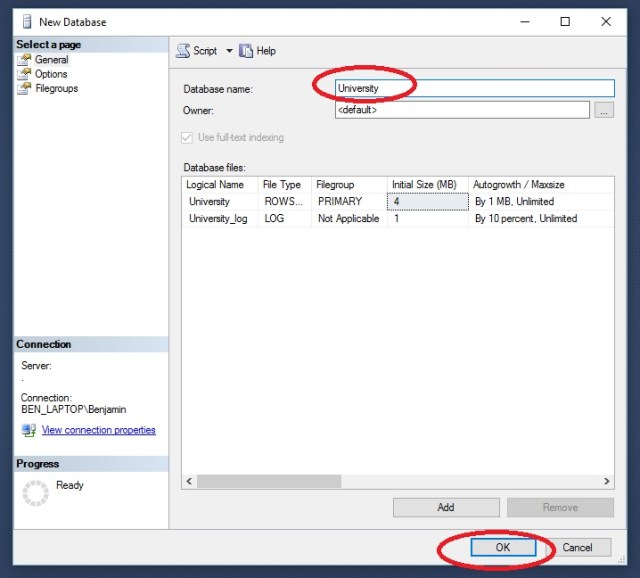
First, let’s create a new database to work with.

Open up SQL Server Management Studio >  Object Explorer > right click  > Databases > New Database

sqlclean2

In the New Database window, give your new database the name University and click OK

sqlclean3

Right click on your new database > Tasks > Import Data

sqlclean4

On the Welcome to SQL Server Data Import  and Export Wizard click Next

On Choose a Data Source, select Microsoft Excel from the drop down. Then browse to your downloaded Excel file: dataCleanWSQL.xlsx

sqlclean5.jpg

Select SQL Server Native Client from the drop down. If your are working on the same machine as your SQL Server instance, you can just put a period “.” in Server Name. Otherwise you would need the server name. Database should be pre-filled with University.

sqlclean6

Select Copy data from one or more tables or views and click Next

sqlclean7

Take note of Destination name ([dbo].[Sheet1$]) and click Next

sqlclean8

Click Next and Finish. You will watch the process. Note how many rows transferred. This should match up to your source data.

sqlclean9

Back in the Object Browser go to University> Tables > dbo.Sheet1$. Right click and Select Top 1000 Rows.

sqlclean10

Here is the output, showing the contents of your imported data

sqlclean11

Step 2- Write the SQL Script

Load the SQL script by going to File>Open>File and choose DataCleanwSQL.SQL

While this is not an SQL tutorial, I will give a brief overview of the script file

**note GO in SQL indicates a complete block of code. This code will be completed before the script continues one to the next block of code. While it is not always needed, it is good coding practice

The first block of code: use University, simply tells SQL Server which database we are working with.

The next block: alter table, lets you make changes to an existing time. In this case, we are adding 3 column for out new data fields to go in (day, department, building).

sqlclean12

The next block is an update block. In this block we set the value of our new column day by datename(dw, [start date]). This converts the datetime stamp from [start date] to a weekday name.

The next block is a Case Statement. This works like a nested If – Then -Else statement in many languages. In this block we are stating When the value of Class column is like ‘Calc%’ ( % is a wildcard in SQL) Then set the value of the department column to ‘Math’

sqlclean13

The next code block is another Case statement. This one is using a between statement though, stating that When the Classroom column value is between 100 and 199 then set the value of Building to A

Finally
Select *
from dbo.sheet1$
displays the contents of the table.

sqlclean14

Now we have our data the way we want it. You connect you BI tool to SQL Server to work with the data, you can export it as a CSV file, or you can just copy an paste it into Excel for further analysis.

sqlclean154

Step 3: Repeat as needed

The great advantage the method above is that now we have a script we can run again over and over. So the next semester, when you download the new class listing, you don’t have to spend a lot of time on data prep. You simply have to import it into SQL Server and run your script.