Python: Working with CSV Files

Since you are on my site, I am going to go out on a limb here and say you are interested in working with Data in one form or another. I mean, if you are looking to learn how to make a video game with Python, you are in the wrong place. I am not going to be much help to you at all.

But, for those of us who do want to work with data, the last thing we want to do have to manually input all the data. We need methods for reading from and writing to files and databases. We will start by learning to read and write a CSV  (comma separated values) file.

If you would like to play along, you can download the CSV file I will be working with here: empList

Unzip the file and place it somewhere you can find it.

The file contains 7 records, with 3 columns each.

csv

If you want to make your life a little easier, when you open your Jupyter Notebook, type pwd

This will give you your present working directory. If you place your csv file in this directory, all you have to do is call it by name.

csv1

I am not going to do that however. I want to show you how to work with directories.

Get Full Directory Path

For Windows Users, if you hold down the Shift key while right clicking on your file, you will see an option that says: Copy as Path

csv2

CSV Module

To read or write to a CSV file, you need to import the CSV module.

In the next line I use the open() method from the CSV module to open my file.

f = open(paste your file path you copied here, ‘rb’)‘rb’ is required for reading CSV files in Python 2.7

Note the double \\ . I had to add the second \ to my copied file path. If you don’t Python will view the single \ as an escape character and your file will not open.

csv3.jpg

Read the file

Now that the file has been opened, let’s read it. We start by passing the file through the csv.reader() method

Now we can work with it. Below I use a for loop to iterate each row in the file.

csv4.jpg

You can pick and choose columns like you would reading from a list (using indexes).

Notice I had to import the file again – once CSV iterates through a file, you need to re-import it use it again.

csv5.jpg

You can dump the file into variables though. You can work on those variables repeatedly. In the example below I dump each column into a list.

csv56.jpg

Write a CSV file

Writing a csv file is pretty simple as well. However, when opening the file, use ‘wb’ as the second argument, not ‘rb’.

In this example, I am creating a new file ‘empList1.csv‘ and placing the values found in my Name list in the file.

writing in CSV requires you to use the csv.writer() command to make a writable object and use writerow() just like you did readrow()

also, make sure to close() the file or you will not be able to access it later.

csv57.jpg

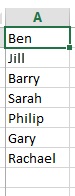
There is a problem here though, look at the output. Python separated each letter in the names into their own columns.

csv58.jpg

The CSV file looks like this in Excel

csv59.jpg

Not exactly what I wanted.

The fix is square brackets [] inside the writerow().

csv60

Now our file is how we want it.

csv61


If you enjoyed this lesson, click LIKE below, or even better, leave me a COMMENT. 

Last Lesson: Python: Working with Rows in DataFrames

Next Lesson:

Return to: Python for Data Science Course

Follow this link for more Python content: Python


Python: Lists and Dictionaries

Lists and Dictionaries are kind of like super variables. They allow you to store multiple data under a singular name. In the example below, I first assign the variable ‘a‘ a value of 6. Next when I go to assign it a value of 7, it replaces 6.

What if I want to keep both 6 and 7?

pylist

Sure I could use 2 variables, (ex. a and b), or I can use a list.

List

A list is a collection of data in Python. You create a list by assigning a variable a group of data enclosed in square brackets [].

Notice that lists are indexed, meaning you call them up using the following syntax: variable[index]

Note that indexes in Python start at 0. So in our set of 4 elements, the indexes would be 0,1,2,3. Notice when I try to use index 4, I get an out of range error.

Screenshot 2022-07-04 210407

Lists can also hold strings, or combinations of values in one list.

Screenshot 2022-07-04 210637

Try your code in our online Python console:  

Adding and removing elements from a list

.append(): adds a element to the list

.pop(): removes last element from list

.remove(value): removes element matching value

del list[index]: deletes element by index

.clear(): removes all elements

Screenshot 2022-07-04 220540

Try your code in our online Python console:  

Dictionaries

This of dictionaries as lists with named indexes. This makes looking up values easier (especially when your code get more complicated).

Each data element is paired with a named index. A dictionary is denoted through the use of curly braces {} and : separating the named index and the value.

Screenshot 2022-07-04 210916


Try your code in our online Python console:  

If you enjoyed this lesson, click LIKE below, or even better, leave me a COMMENT. 

Last Page: Printing with .format{}

Next Page: Working with lists

Back to Python Course: Course

How I Found Love Using Pivot Tables

Okay, a little background information is in order here. I work for a Clinical Engineering Department in a large hospital system. Our main purpose is to inspect and repair medical equipment, from MRIs and CT Scanners down to blood pressure machines and IV pumps.

Now I know the title says love, and I promise there is a love connection, just be patient.

While doing some database work on the system we use to track repairs, I decided to do a little data exploration (I don’t have a lot of hobbies). I asked myself, “What equipment is breaking down the most?” I figured this could be a valuable piece of information. So, I exported six months worth of repair history into a CSV file.

Using Excel, I started playing with Pivot Tables. I started by checking to see what types of equipment seemed to break down the most. Turns out it was infusion pumps, not a real surprise to anyone who has ever worked in the field.

excelpivot2

But looking a little more closely. One hospital out of my system used Brand A and they wanted to get rid of them out of the belief they were the unreliable. However, a quick look at the data provided otherwise.

excelpivot3

Okay, so after I unsullied the reputation of the Brand A pump, I decided “Why not look at the repair rates of individual pieces of equipment?” (I know, I live a WILD life)

Below is the list from one of my hospitals. Pay special attention to the area highlighted in red. The amount of repair work orders opened for dental chairs was way off anything my 20 plus years of experience in the field would have led me to expect.

excelpivot1.jpg

So I decided to dig a little further. Well, it turns out all 78 work orders we opened by one of our younger (24 year old) single technicians. A quick walk up to the dental department quickly explained why the dental chairs needed so much attention. The problem was about 5’2″, long blond hair, a cute smile, and (even in scrubs) quite the little body.

So there you go. Young love revealed itself through the power of the pivot table.

Python: Central Limit Theorem

The Central Limit Theorem is one of core principles of probability and statistics. So much so, that a good portion of inferential statistical testing is built around it. What the Central Limit Theorem states is that, given a data set – let’s say of 100 elements (See below) if I were to take a random sampling of 10 data points from this sample and take the average (arithmetic mean) of this sample and plot the result on a histogram, given enough samples my histogram would approach what is known as a normal bell curve.

In plain English

  • Take a random sample from your data
  • Take the average of your sample
  • Plot your sample on a histogram
  • Repeat 1000 times
  • You will have what looks like a normal distribution bell curve when you are done.

hist4

For those who don’t know what a normal distribution bell  curve looks like, here is an example. I created it using numpy’s normal method

hist5.jpg

If you don’t believe me, or want to see a more graphical demonstration – here is a link to a simulation that helps a lot of people to grasp this concept: link

Okay, I have bell curve, who cares?

The normal distribution of (Gaussian Distribution – named after the mathematician Carl Gauss) is an amazing statistical tool. This is the powerhouse behind inferential statistics.

The Central Limit Theorem tells me (under certain circumstances), no matter what my population distribution looks like, if I take enough means of sample sets, my sample distribution will approach a normal bell curve.

Once I have a normal bell curve, I now know something very powerful.

Known as the 68,95,99 rule, I know that 68% of my sample is going to be within one standard deviation of the mean. 95% will be within 2 standard deviations and 99.7% within 3.

hist.jpg

So let’s apply this to something tangible. Let’s say I took random sampling of heights for adult men in the United States. I may get something like this (warning, this data is completely made up – do not even cite this graph as anything but bad art work)

hist6.jpg

But reading this graph, I can see that 68% of men are between 65 and 70 inches tall. While less than 0.15% of men are shorter than 55 inches or taller than 80 inches.

Now, there are plenty of resources online if you want to dig deeper into the math. However, if you just want to take my word for it and move forward, this is what you need to take away from this lesson:

p value

As we move into statistical testing like Linear Regression, you will see that we are focus on a p value. And generally, we want to keep that p value under 0.5. The purple box below shows a p value of 0.5 – with 0.25 on either side of the curve. A finding with a p value that low basically states that there is only a 0.5% chance that the results of whatever test you are running are a result of random chance. In other words, your results are 99% repeatable and your test demonstrates statistical significance.

hist7.jpg

Python: Histograms and Frequency Distribution

In the spirit total transparency, this is a lesson is a stepping stone towards explaining the Central Limit Theorem. While I promise not to bog this website down with too much math, a basic understanding of this very important principle of probability is an absolute need.

Frequency Distribution

To understand the Central Limit Theorem, first you need to be familiar with the concept of Frequency Distribution.

Let’s look at this Python code below. Here I am importing the module random from numpy. I then use the function random_integers from random. Here is the syntax:

random.random_integers(Max value, number of elements) 

So random.random_integers(10, size =10) would produce a list of 10 numbers between 1 and 10.

Below I selected 20 numbers between 1 and 5

hist1.jpg

Now, since I am talking about a Frequency Distribution, I’d bet you could infer that I am concerned with Frequency. And you would be right. Looking at the data above, this is what I have found.

I create a table of the integers 1 – 5 and I then count the number of time (frequency) each number appears in my list above.

hist2.jpg

Histogram

Using my Frequency table above, I can easily make a bar graph commonly known as a histogram. However, since this is a Python lesson as well as a Probability lesson, let’s use matplotlab to build this.

The syntax should be pretty self explanatory if you have viewed my earlier Python graphing lessons.

hist3

Now lets, do it with even more data points (100 elements from 1 to 10 to be exact)

hist4.jpg


If you enjoyed this lesson, click LIKE below, or even better, leave me a COMMENT. 

Follow this link for more Python content: Python


Python: Arithmetic, Relational Operators, and Variables

Arithmetic Operators

Python Arithmetic Operators are pretty standard.

Arithmetic Operators

  • + : Addition
  • – : Subtraction
  • * : Multiplication
  • / : Division
  • //: Integer Division (Return divisor: 5/2 = 2)
  • % : Modulus (returns the remainder of a division problem: 5%2=1)
  • ** : Exponent (4**2 = 16)

Screenshot 2022-07-05 124159

Try your code in our online Python console: 

Relational Operators

Relational operators compare values and return a Boolean result (Boolean means 2 states, in this case True or False). Note when using relational operators, == is equal to. A single = is used to set a variable value, not to compare two values

> Greater than

< Less Than 

== Equal to

!= not equal

>= or <= greater than or equal, less than or equal

Screenshot 2022-07-05 122503

Try your code in our online Python console: 

Variables

Variables are a way of holding values in a program. You take a unique character string and you can assign values to it, and use the string throughout your program. Variables in Python are pretty straight forward. Unlike other programming languages, you do not need to define the variables first. Python dynamically assigns the data type.

Three main rules:

  • Variables must start with a letter or _
  • Variables are case sensitive
  • Avoid using command keywords (print, def, for)

pythonFundamentals3

notice lowercase ‘a‘ returns an error

Remember, Jupyter notebooks only return the last command. If you want both variables, use the print command

Screenshot 2022-07-03 210654

You can perform arithmetic functions on variables

Screenshot 2022-07-03 211010

And of course, variables can hold strings as well

Screenshot 2022-07-05 122935

Try your code in our online Python console: 

Last Lesson: Install Python and Hello World

Next Lesson: Print Variables and User Input

Back to Python Course: Course

8 Fun Facts About Python

  1. Python was named after the comedy troupe Monty Python. That is why you will often see spam and eggs used as variables in examples (a little tip of the hat to Monty Python’s Flying Circus)
  2. Python was created in 1991 by Guido Van Rossum
  3. There are Java and C variants of Python called JPython and CPython
  4. Python is an interpretive language, meaning you don’t need to compile it. This is great for making programs on the fly, but does make the code rather slow compared to compiled languages
  5. Python is part of the open source community, meaning plenty of independent programmers are out there building libraries and adding functionality to Python.
  6. It is one of the official languages at Google
  7. Ever work with Java or C? If so, one the first things you will notice is that Python has done away with braces. And it appears they even have a sense of humor about it. Look what happens when you try importing braces.pyfun
  8. Finally import this pyfun1.jpg

If you enjoyed this lesson, click LIKE below, or even better, leave me a COMMENT. 

Follow this link for more Python content: Python


SQL: 4 Types of Joins

SQL Joins come in 4 major types. In T-SQL – Microsoft’s SQL language, unless otherwise specified, a Join defaults to Inner Join. The other three are Right Outer Join, Left Outer Join, and Full Outer Join.

Inner Join

Inner joins match up data that exists in both tables. In the example below, only A and C found in the result table since B,D don’t exist in TableB and E,F don’t exist in TableA.

Syntax

Select *
from TableA as A Join TableB as B
on A.ID = B.ID

innerjoin

Full Outer Join

A Full Outer Join puts all elements in both tables together. Where information is missing, Nulls will appear

Select *
from TableA as A Full Outer Join TableB as B
on A.ID = B.ID

fullouterjoin

Left Outer Join

Left Outer Join takes all data from the Left Table and joins up matching data from the Right table. Left and Right is determined based on the table’s position in the Where clause

Select *
from TableA as A Left Outer Join TableB as B
on A.ID = B.ID

leftouterjoin.jpg

Right Outer Join

Right Outer Join is the exact opposite of the Left Outer Join, with all elements from the Right Table being used and only matching elements from the Left Table.

Select *
from TableA as A Right Outer Join TableB as B
on A.ID = B.ID

rightouterjoin.jpg

Excel: Sorting and Filtering

Download Exercise File Here: ExcelTable

Sorting and Filtering are two basic functions you will perform quite often in Excel. When dealing with large data sets, it can be difficult to see what you are looking for, especially if the records appear in random order. Using sort and filter, you can adjust the spreadsheet to show what you want to see.

Sort

Sorting is simple in Excel. Just click on the header cell for the column you want to sort (in my example I chose “Name”). From the Ribbon Bar select Data. Now click on the AZ and ZA arrows. The column you selected will sort.

excelsort

Now, try it out on the other columns as well.

Finally, select the box directly above the word sort in the picture above. This will give you an advanced sort menu.

From this menu,  can select the column you wish to sort, the values you want to sort on, and the sort order.

excelsort1.jpg

Filter

To filter, select the Filter icon from the Data tab in the Ribbon Bar

excelsort2

Notice arrows now appear in the column header cells

excelsort3

Click on the arrow for Quarter. Now, uncheck the Select All box and check Quarter 2 > Okay

excelsort4.jpg

Now your sheet only has rows containing Quarter 2. Take note of the row numbers though. Notice the row numbers skip around. This is because the other rows are still there, they are just hidden by the filter.

excelsort5.jpg